एक समय ऐसा भी था जब मैं PPT और image generation जैसे कामों के लिए AI tools पर पैसे दे रही थी, लेकिन जब मैंने Google के free AI tools इस्तेमाल किए, तो results इतने अच्छे मिले कि paid tools की जरूरत ही नहीं लगी।आज के समय में AI tools की भरमार है।हर दूसरा tool ₹200, ₹999 या ₹4000 महीना मांग रहा है।लेकिन पिछले कुछ महीनों में मैंने एक चीज़ notice की है।Google quietly ऐसे AI tools दे रहा है जो free हैं, powerful हैं और practically usable हैं।
इस blog में मैं वही tools share कर रही हु,जो मैंने खुद use किए हैं।कोई theory नहीं, कोई hype नहीं। सिर्फ real experience। मैंने खुद पिछले 15 दिनों में इन tools को टेस्ट किया है। इसलिए में आपको हर टूल कैसे काम करता है और आपको कैसे useful होगा यह बताने वाली हु।
अगर आप Student हैं,Freelancer हैं,Marketer हैं,Business owner हैं, तो ये blog आपके लिए है।
Google के 5 Free AI tools
| AI Tool का नाम | यह Tool किस काम के लिए है |
| 1) Google AI Studio | यह tool बिना coding के website structure, landing page, form flow और app logic तैयार करने में मदद करता है। |
| 2) Notebook LM | यह tool PDF, documents और articles को आसान भाषा में समझाने और structured notes बनाने के लिए इस्तेमाल होता है। |
| 3) Gemini Canvas | यह tool marketing creatives, social media posts, festival banners और branded graphics बनाने के लिए उपयोगी है। |
| 4) Google Slides (AI के साथ) | यह tool text documents और reports को professional presentation में convert करने के लिए इस्तेमाल किया जाता है। |
| 5) AI Image Generator (Nano Banana) | यह tool thumbnails, product mockups, marketing visuals और high-quality AI images generate करने में मदद करता है। |
अब विस्तार से हर टूल के बारे मे जानते है।
1) Google AI Studio – बिना Coding Website और App Structure बनाना।
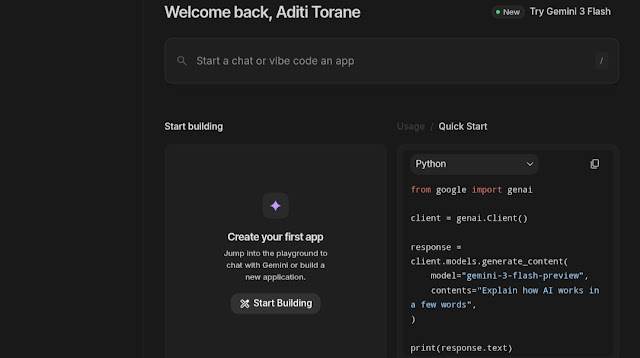
जब मैंने पहली बार Google AI Studio open किया, मुझे लगा ये सिर्फ developers के लिए होगा।
लेकिन tool test करने के बाद यह tool non-technical लोगों के लिए ज़्यादा useful है।
ये tool क्या करता है?
Google AI Studio में आपको Gemini model मिलता है,जिससे आप simple language में instructions देकर :
• Landing page structure
• Website sections
• App logic
• Form flows generate कर सकते हो।
Google AI Studio Step-by-step कैसे use करें?
1) Google AI Studio open करें।
2) “Create prompt” पर जाएँ।
3) Simple भाषा में लिखें, जैसे : “मुझे coaching institute के लिए landing page चाहिए”
4) AI आपको : Headings, CTA ideas, Layout suggestion, Basic code logic दे देगा।
Google AI Studio किसके लिए best है?
• Freelancers
• Startup founders
• Students जो web सीख रहे हैं।
2) Notebook LM – PDF और Articles से Explainer Content
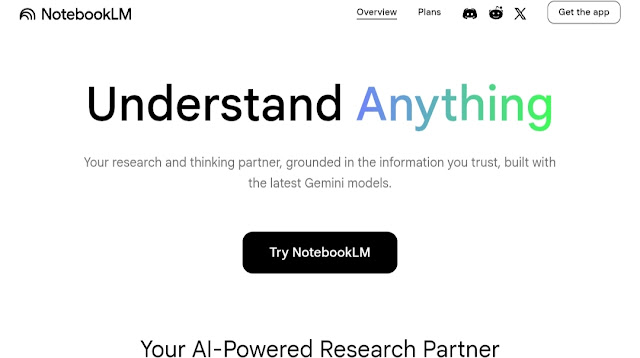
Notebook LM आपको, Heavy PDFs, Research articles, Notes को simple explainable format में convert करने में help करता है।
मैंने Notebook LM का real life में कैसे use किया?
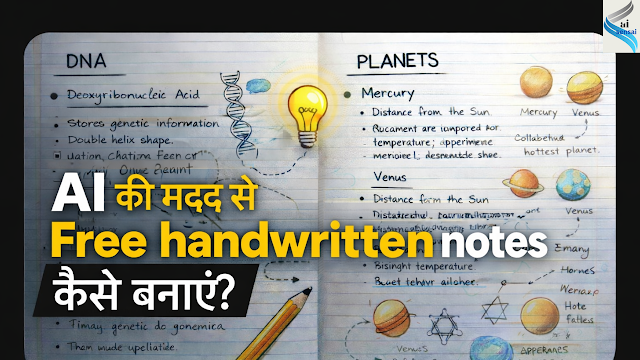
मुझे study notes से उस content को थोड़ा visualize और eye catching बनाकर याद रखना था। इसीलिए मैने Notebook LM का content को याद करने के लिए उपयोग किया। इसी तरह आप भी Training material, Study notes, Content research के लिए इसका उपयोग करे सकते है।
Notebook LM को Step-by-step कैसे use करें?
1) Notebook LM open करें।
2) PDF / document upload करें।
3)Ask: “Is topic ko simple language mein samjhao।”
👉 Teachers और students के लिए bohot powerful।
3) Gemini Canvas – Marketing और Graphics के लिए Designer की जगह।
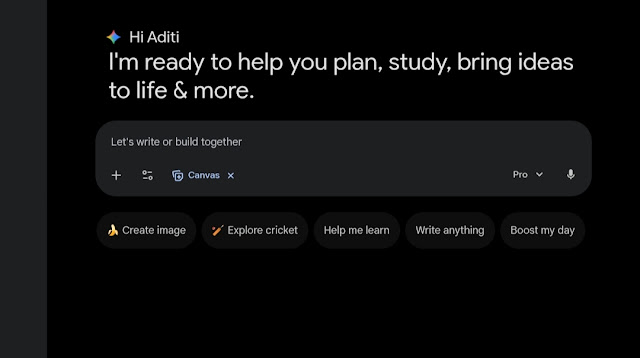
मुझे हर festival, offer या campaign बनाने के लिए, Designer ढूँढो, Brief समझाओ, Changes करवाओ, Time और पैसा दोनों waste।
Gemini Canvas से क्या बदला?
अब मैं खुद:
• Instagram posts
• Festival creatives
• Offer banners
• Marketing visuals generate कर लेता हूँ।
Gemini Canvas Step-by-step use करने का process :
1) Gemini open करें।
2) Canvas mode select करें।
3) Prompt दें
4) Brand color, tone और audience बताइए।
5) Ready creative मिल जाता है।
क्यों भरोसेमंद है?
• Google का data ecosystem
• Clean design suggestions
• Over-designed नहीं करता।
👉 Small businesses के लिए bohot bada cost saver।
4) Google Slides + AI – Documents से Professional Presentation
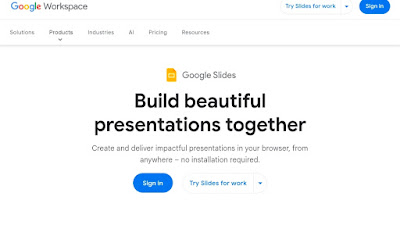
Clients अक्सर Word files , PDFs , Reports दे देते हैं और कहते हैं:
“इसको presentation बना दो”
पहले इसमें घंटों लगते थे। पर अब Google Slides की मदद से यह काम काफी आसान हुआ है।
में अब Google Slides में AI use करके :
• Visual suggestions
• Content auto-structure
• Slide flow कर लेती हु।
Step by step process :
1.Google slides खोले।
2.AI/Gemini option चुने।
3.Document paste करें।
4.Command दे: ” isko professional presentation mein convert karo”
किसके लिए best?
• Trainers
• Consultant
• Corporate Professional
• Student
👉 ये tool thinking का time बचाता है।
5) AI Image Generator (Gemini / Nano style images)
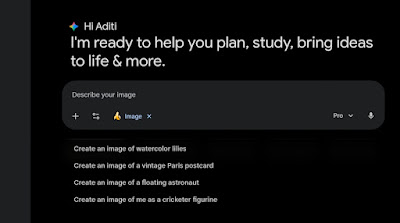
मैंने कई paid image tools use किए हैं,
लेकिन Google के image generation में :
Clean visuals, Marketing-ready look, Prompt understanding बेहतर है।
आप क्या बना सकते हो?
• Product mockups
• Thumbnails
• Pitch deck images
• Social media visuals
Step-by-step process
1) Gemini में image generate option चुनें।
2) Clear prompt लिखें।
3) Variations मिल जाती हैं।
👉 Beginners prompt simple रखें, result better आएगा।
FAQs (अक्सर पूछे जाने वाले सवाल)
1) क्या ये Google AI tools free हैं?
👉हाँ, इन tools का basic version free है।
2) क्या coding आना जरूरी है?
👉नहीं, beginners भी आसानी से use कर सकते हैं।
3) Students के लिए useful हैं?
👉हाँ, study, notes और presentations के लिए helpful हैं।
4) Freelancers / marketers use कर सकते हैं?
👉हाँ, content, design और productivity बढ़ाने में काम आते हैं।
5) Mobile पर चलेंगे?
👉हाँ, mobile browser से भी use हो जाते हैं।
Google के ये free AI tools काम को आसान, तेज और smart बना देते हैं।चाहे आप student हों, freelancer हों या business owner। इन tools को use करना आज की जरूरत बन चुका है।
अगर आप future-ready बनना चाहते हैं, तो AI को आज से अपनाइए।
Disclaimer : The images shown in this tutorial are personal screenshots captured by me and are used solely for educational and informational purposes.